
How to Download Videos from Threads
Threads doesn't have a download button, but there's a workaround. Paste any public Threads video link above and save the MP4 file to your Photos app or Downloads folder — works on iPhone, Android, and computers.
Paste a Threads link above to see download options
Threads Doesn't Have a Download Button — Here's What to Do
You've probably noticed there's no 'download' or 'save video' option when you tap the menu on a Threads post. That's because Threads doesn't include a built-in way to save videos to your phone or computer.
The workaround is simple: copy the link to the public post, paste it in the tool above, and download the video as an MP4 file. It works the same whether you're on an iPhone, Android, or computer — no app installation needed.
How to Download Threads Videos
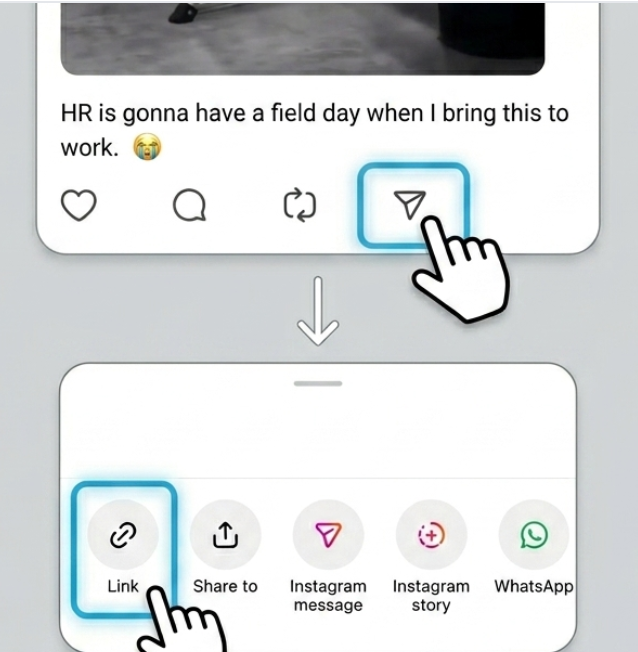
Copy the Threads video link
Find the video you want to save. Tap the share arrow below it, then tap 'Copy link' to copy the URL to your clipboard.
Paste the link and load
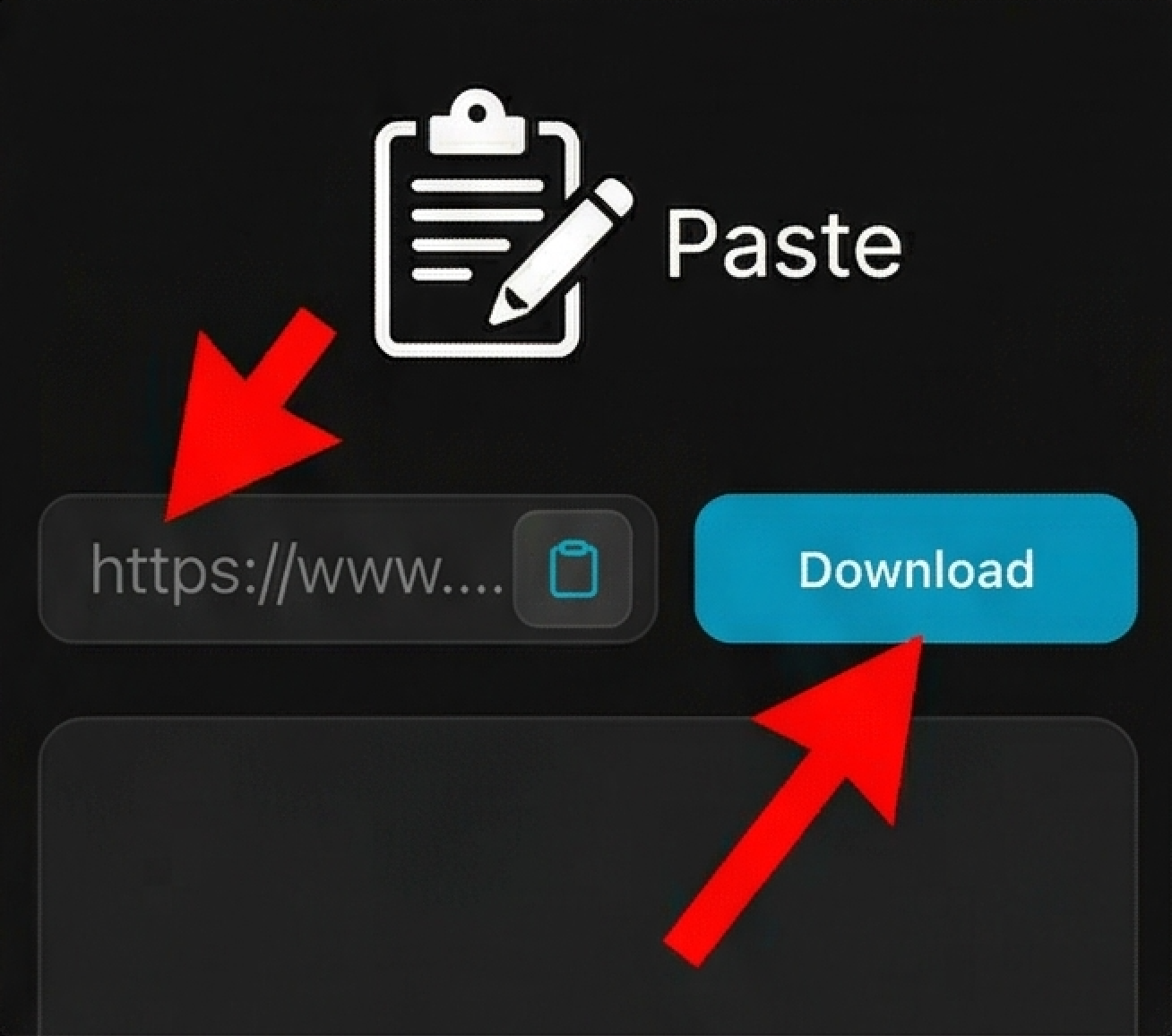
Paste the Threads link into the input box. The tool fetches the video and prepares it for download — usually takes a few seconds.
Download to your device
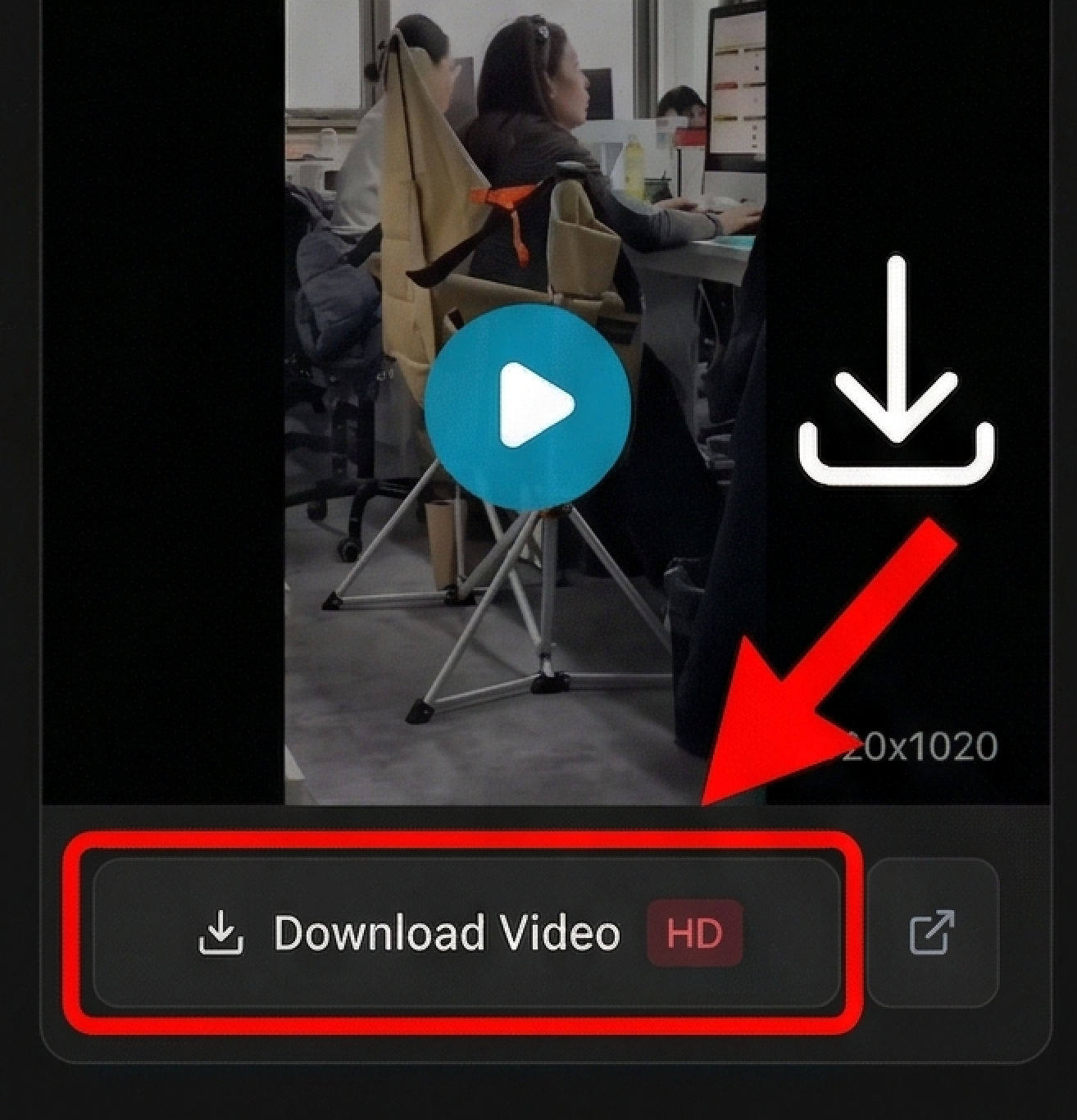
On iPhone: tap Download, then 'Save to Photos'. On Android: tap download and check your Gallery or Downloads folder. On computer: right-click the video and choose 'Save video as'.
Looking for device-specific guides?
Why This Works Better Than Screen Recording
Get the Original MP4 File
Screen recording captures your screen with lower quality. This gives you the actual video file — same resolution, same clarity, no red dot or notification bar in the way.
Save Videos to Your Photos or Gallery
On iPhone, downloaded videos go straight to your Photos app. On Android, they save to your Gallery or Downloads folder. No file manager hunting required.
No App Install Needed
Everything happens in your browser. No sketchy apps to download, no login required, no access to your Threads account.
Works on iPhone, Android, PC, Mac
Same simple tutorial works everywhere. Copy the Threads video link, paste it in the downloader, and save to your device. Whether you're on your phone or computer, the download process is identical.
Frequently Asked Questions
Where do the videos go after I download them?
Why does it say 'error' or 'not found' when I paste a link?
What's a public post?
Is this better than screen recording?
Do I need to install an app?
Why can't I download some videos?
Can I post these videos to Instagram or TikTok?
What file format do I get?
Does this work for Threads Reels too?
The Simplest Way to Save Threads Videos
Most people try to screen record Threads videos, but that leads to blurry footage with notifications and the red recording dot in the way. The better approach is to copy the post link and use a browser-based downloader to get the original MP4 file — full quality, clean, ready to save to your iPhone Photos app or Android gallery.
This complete tutorial works for any public Threads video or clip. Copy the link from the share menu, paste it in the downloader, and save the video directly to your iPhone Photos app or Android gallery. No apps to install, no accounts to create. The MP4 file is yours in seconds.
Disclaimer
ThreadsDL is an independent utility tool and is not affiliated with, endorsed by, or sponsored by Threads, Instagram, or Meta Platforms, Inc. This tool only supports public content that is accessible on the web.