
4
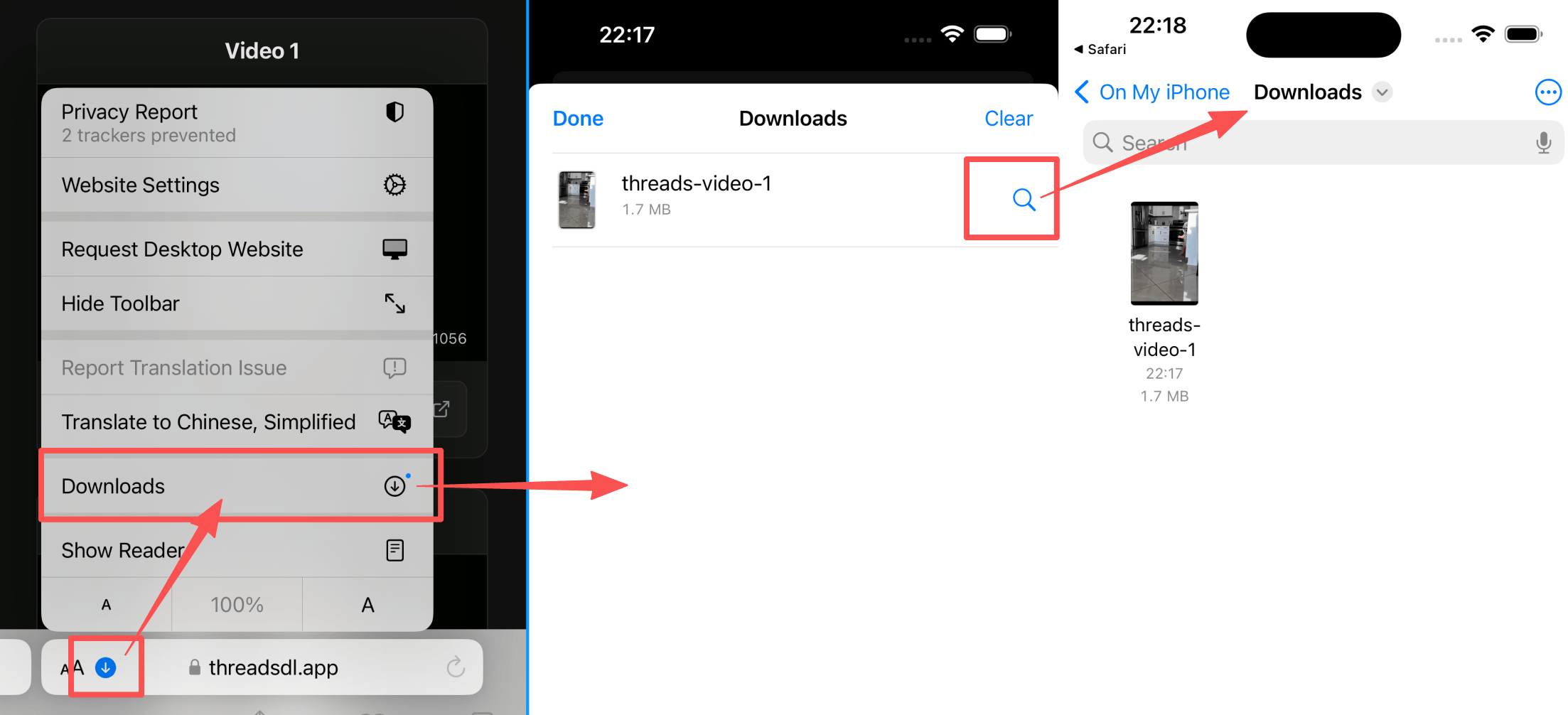
Find the downloaded file in Downloads
After the video or image finishes downloading, open the Files app and go to the Downloads folder. That's where Safari usually stores the file first on iPhone.
Save any public Threads video straight to your iPhone Photos app. Works on any iPhone running iOS 15 or newer using Safari. No separate app required.
Paste a Threads link above to see download options
Downloading Threads videos on iPhone is simple. You don't need to install anything from the App Store — just use Safari, which is already on your phone. Any iPhone running iOS 15 or newer can do this.
Here's what iPhone users need to know: unlike Android, downloaded videos on iPhone go to the Files app first. But don't worry — we'll show you how to easily move them to your Photos app where all your other videos and memories live.
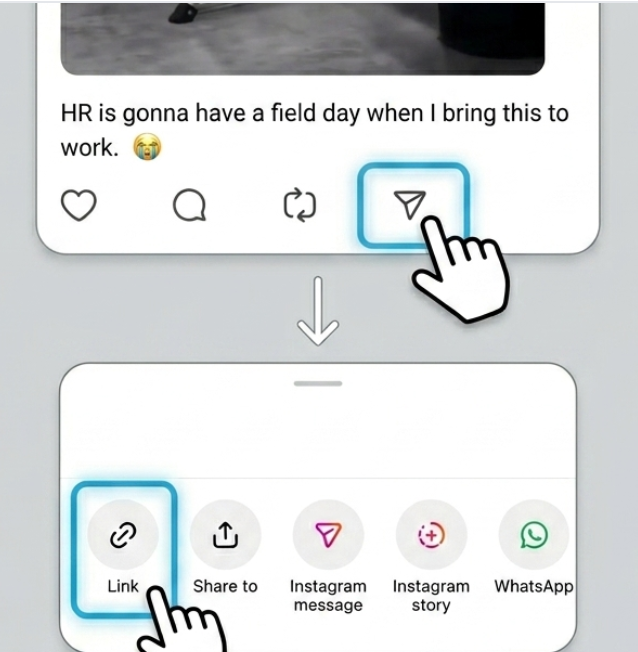
Open Threads and copy the link from the public video post you want to download.
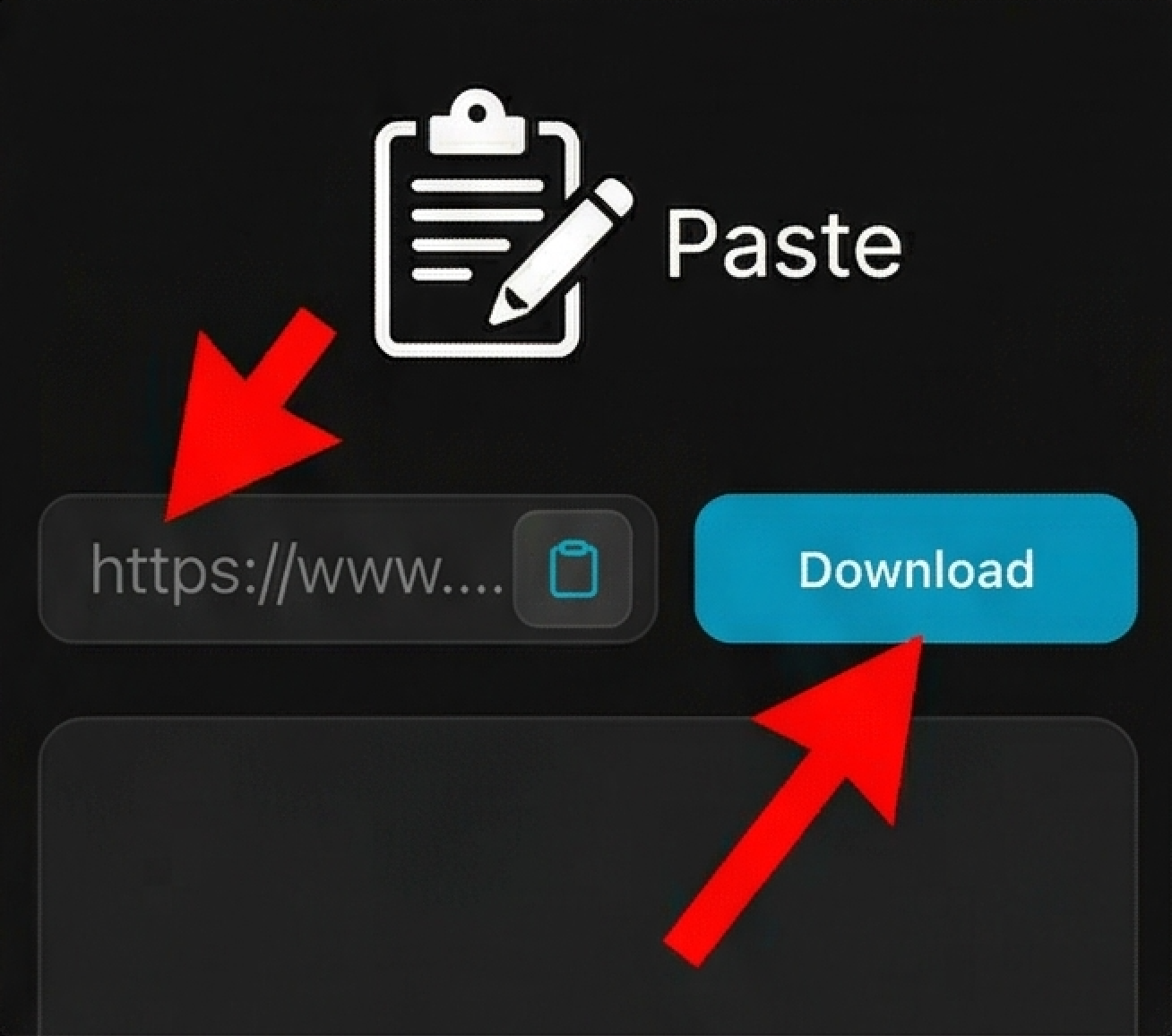
Open the downloader in Safari, paste the Threads URL above, and let the tool load the file for download.
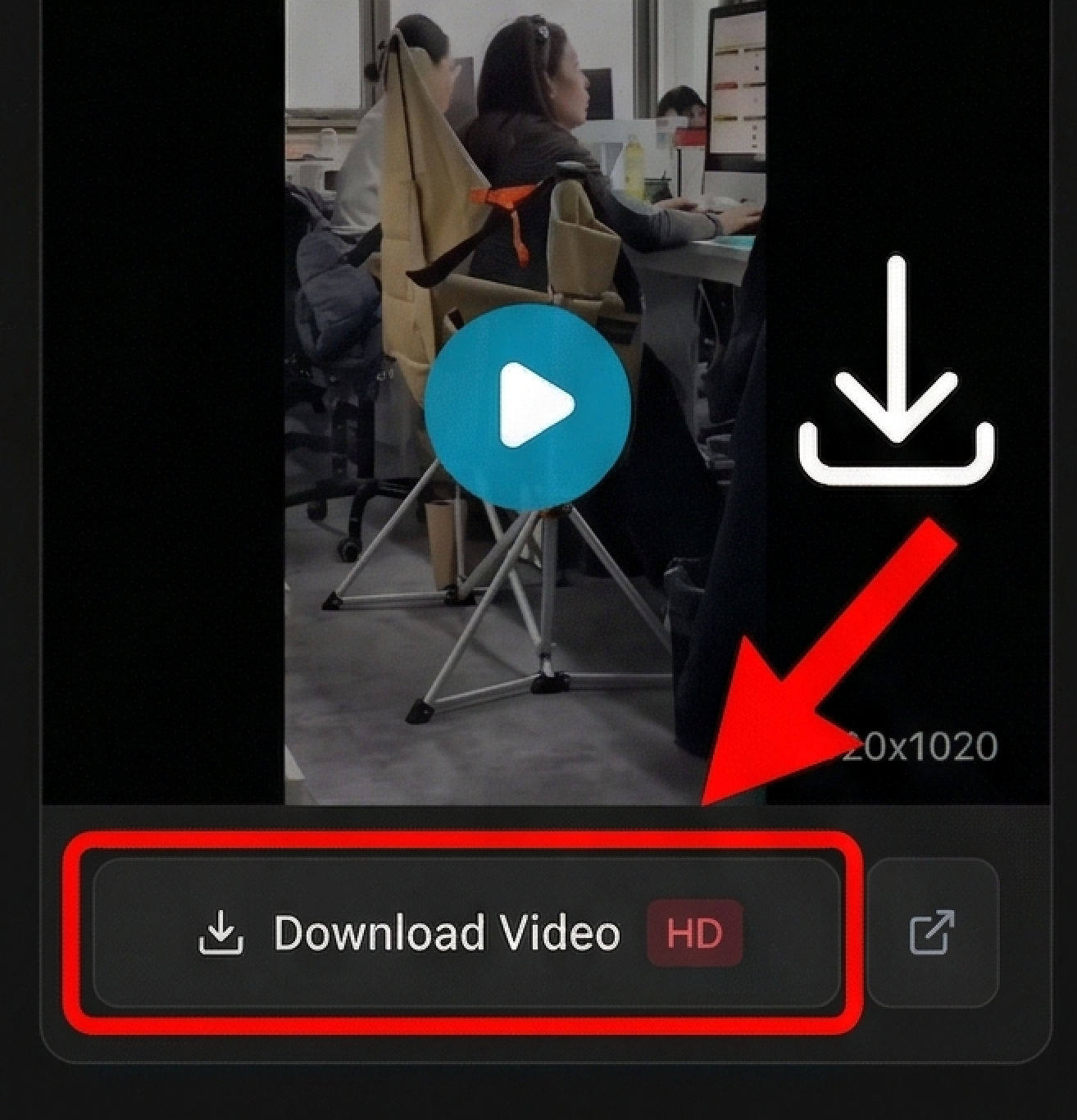
Tap Download to save the Threads video or image to your iPhone. Safari will usually place the file in the Downloads folder inside the Files app.
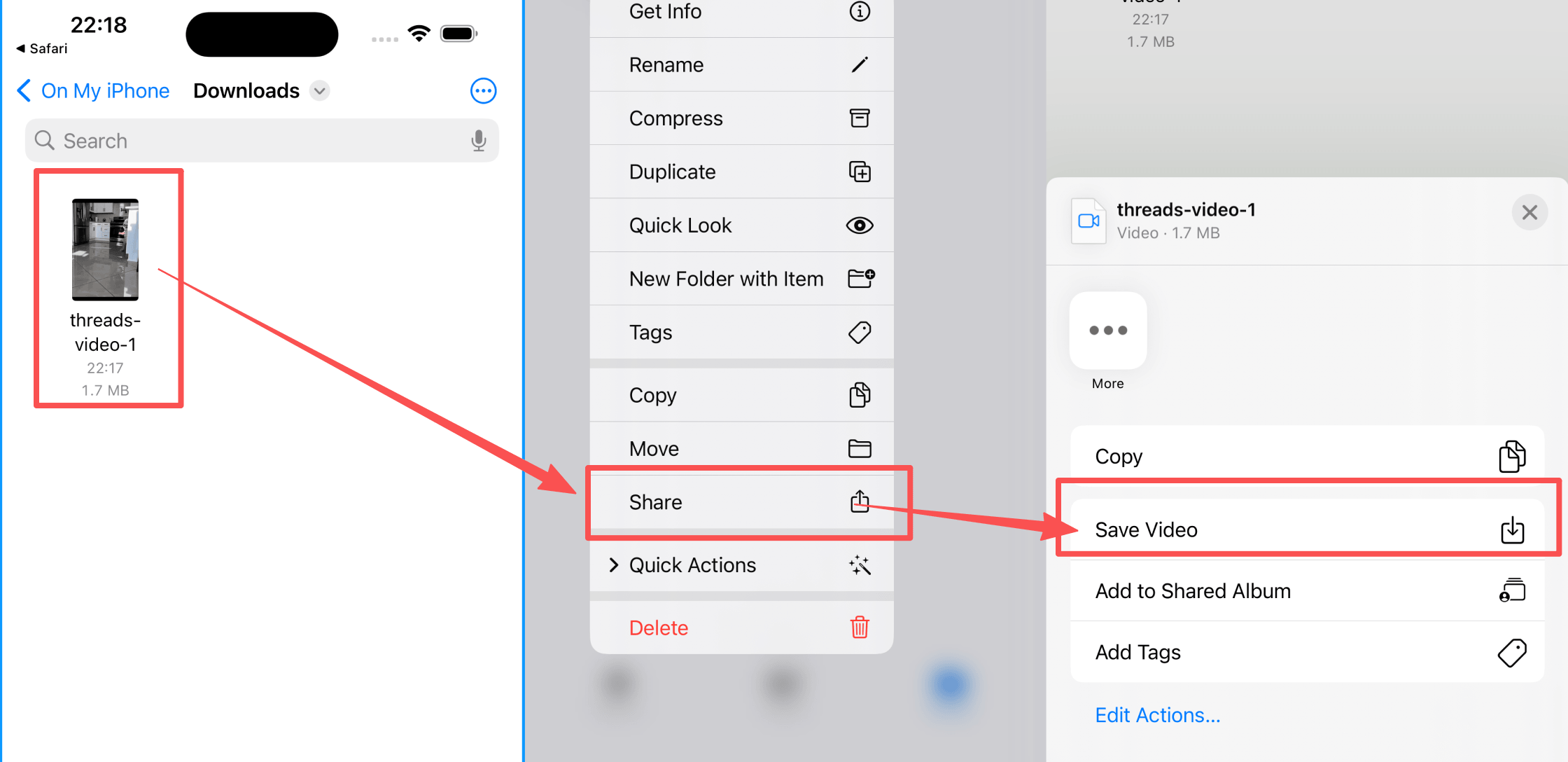
After the video or image finishes downloading, open the Files app and go to the Downloads folder. That's where Safari usually stores the file first on iPhone.
Press and hold the downloaded video or image. In the first menu, tap Share. In the second share sheet, choose Save Video or Save Image, depending on the file type.
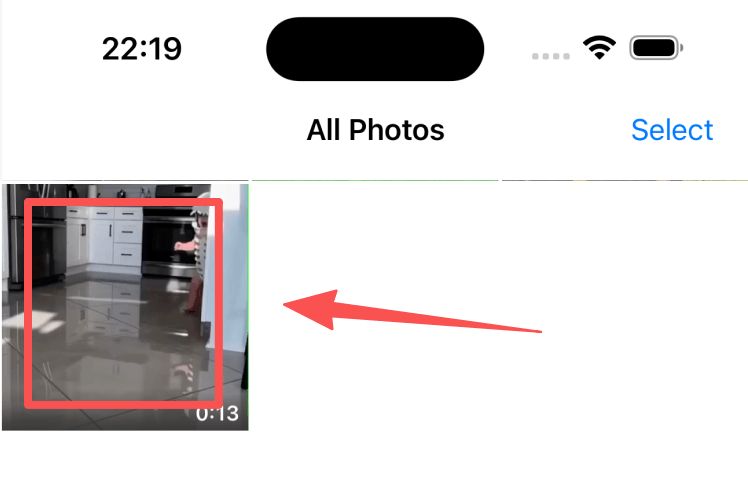
Open the Photos app and you'll see the saved video or image there. From Photos, you can view it, edit it, or share it anywhere on your iPhone.
Looking for device-specific guides?
iPhone 11, 12, 13, 14, 15 — even older models. If your iPhone is running iOS 15 or newer, you can download Threads videos using Safari.
Skip the sketchy third-party apps that ask for your Apple ID or want access to all your photos. Safari handles everything securely.
Download the video in Safari, then move it to your Photos app where all your other videos and memories live. From there you can share it anywhere — Instagram, TikTok, Messages, AirDrop, whatever.
You get the actual MP4 file from Threads — not a screen recording. Full resolution, clean, ready to post or keep in your photo library.
iPhone users often struggle to save videos from social media because iOS handles downloads differently than Android. When you download a Threads video using Safari, it first goes to the Files app's Downloads folder — not directly to your Photos app. This confuses many users who expect to see the video in their photo library immediately.
The solution is simple: after downloading in Safari, open Files > Downloads, find your video, tap and hold it, then tap Share and select 'Save Video'. Now the MP4 file appears in your Photos app alongside your other videos and memories. This works on any iPhone running iOS 15 or newer, including iPhone 15, 14, 13, 12, and 11 series. No App Store downloads needed, no sketchy third-party apps with access to your photo library.
Disclaimer
ThreadsDL is an independent utility tool and is not affiliated with, endorsed by, or sponsored by Threads, Instagram, or Meta Platforms, Inc. This tool only supports public content that is accessible on the web.